First day cover ·
Google Pics brings AI image editing into Docs and Slides, and it's worth a look
Google Pics adds AI image editing to Docs and Slides and a standalone generator for new art. Handy for everyday work, though cropping and naming need work.
Most people will reach for whatever editing tool sits closest to their work, and that's the bet Google is making with Pics. It's a quiet addition to Workspace, easy to miss, and it's more capable than it first looks. If you already build documents and decks in Docs and Slides, it could save you a trip to a separate image app.
The naming is the first obstacle. Pics isn't Google Photos or Google Images, and it isn't a standalone app you install. It's designed to live inside the Google Drive ecosystem, mainly within Docs and Slides, with Google saying it will eventually appear in Drive itself. Think of it as an AI-driven image editor and graphic creator that you reach from the document you're already writing. If you ever get the names mixed up, Google Lens can help you sort them out.
Editing images inside Docs and Slides
Access depends on your account. You'll need an individual Google AI Pro or Ultra subscription, or a Google Workspace organization on the Business Standard, Business Plus, Enterprise Standard, or Enterprise Plus plan. Pics is currently desktop-only, so the Docs and Slides mobile apps won't show it.
If you qualify, click any image in your document or presentation and look for the "Edit" option beneath it. Hover over that button and you should see "Edit this image with Pics." If you don't see it, your account may not be eligible yet, or the rollout may not have reached you. Google says it's adding Pics to all eligible accounts, so it's worth checking back.
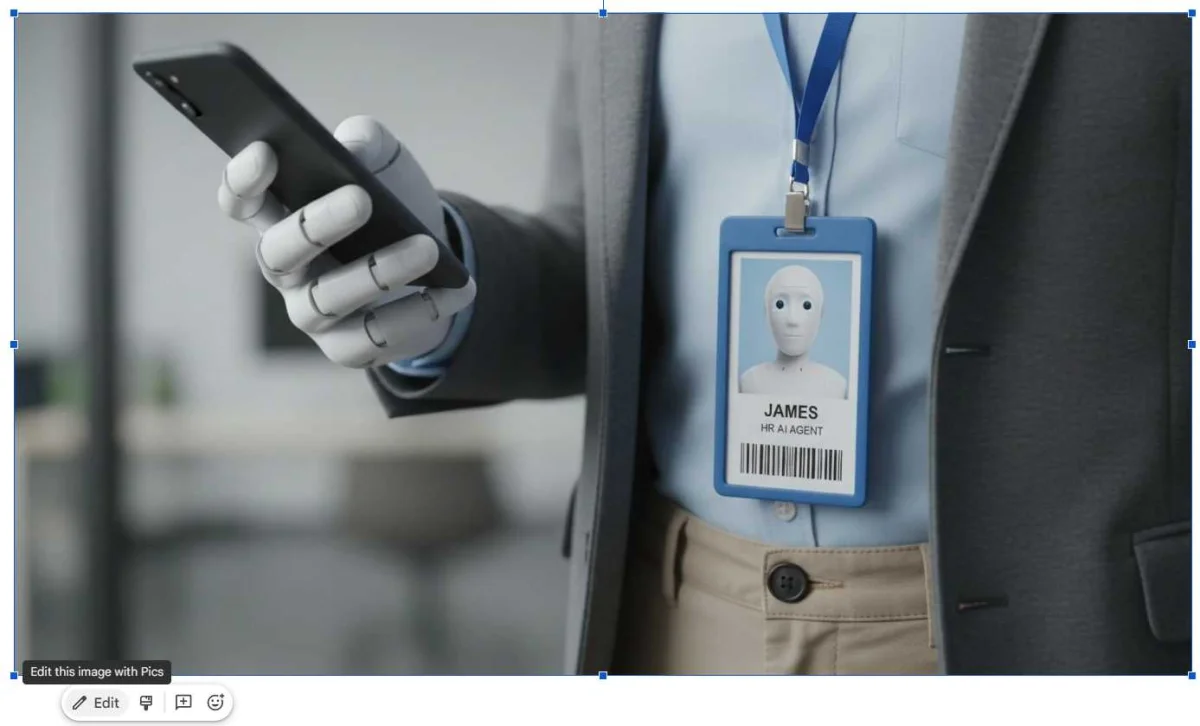
The "Edit" button beneath an image in Docs or Slides is the entry point to Pics editing.
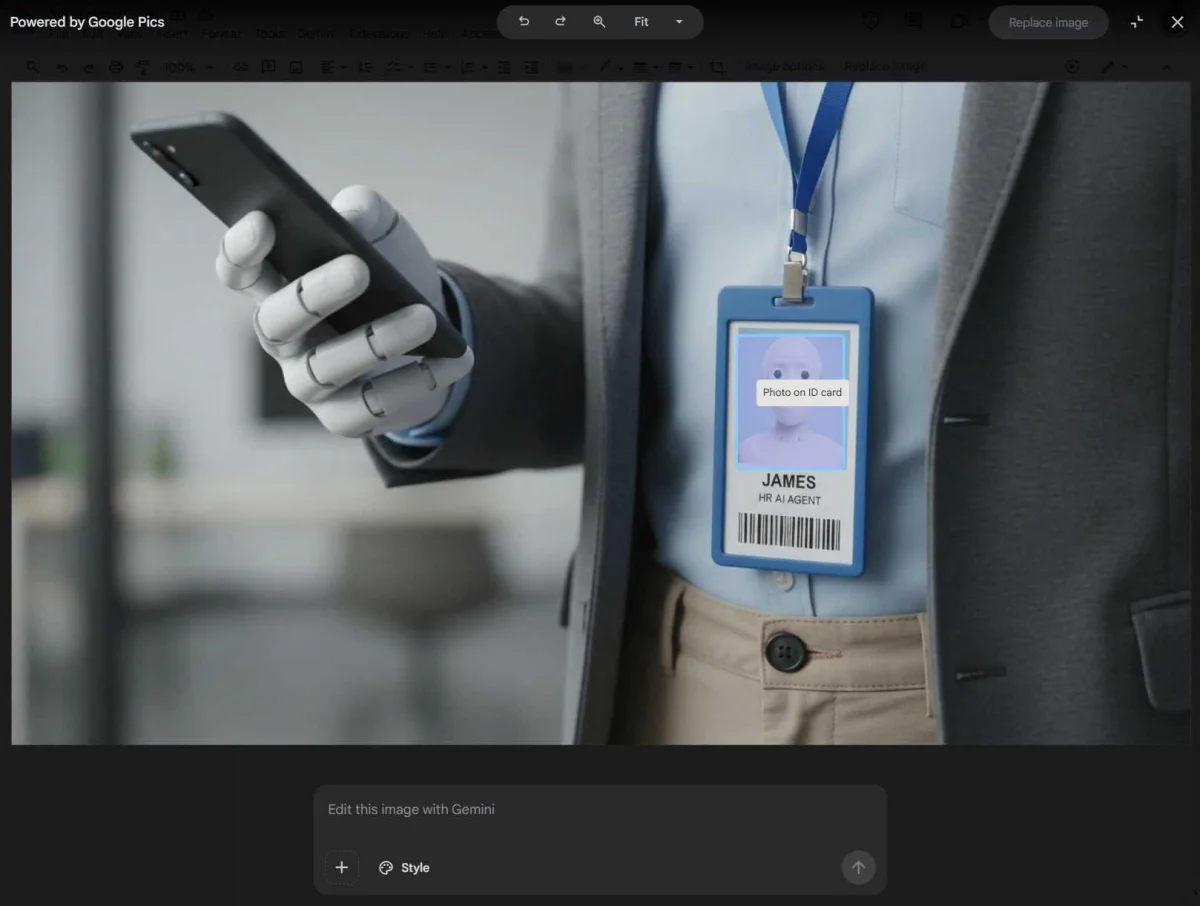
Once the editor opens, it takes a moment to analyze the picture and identify its parts. After a few seconds, hovering over any area shows a description of it, and clicking lets you change that part. Instructions are plain English. You describe what you want, click another area, add another instruction, and then hit "Apply" to run everything together.
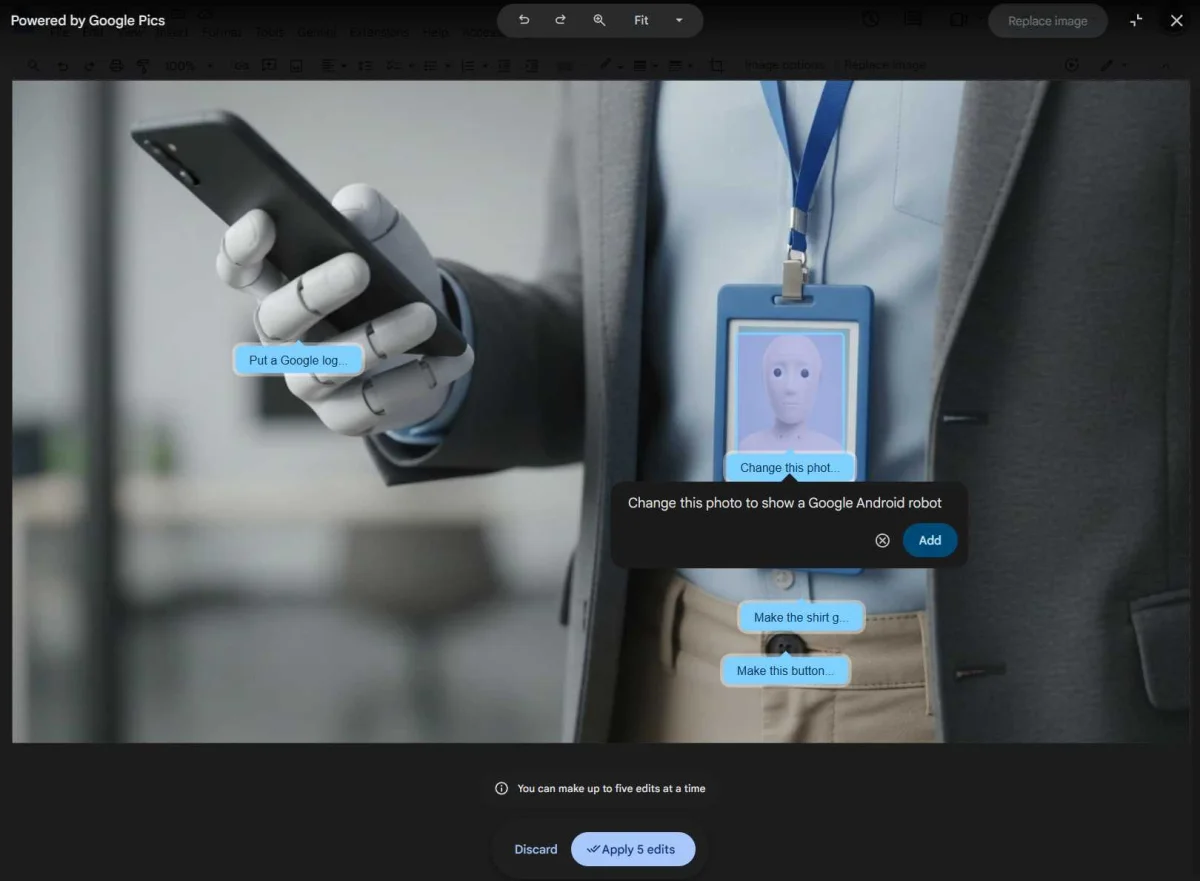
Instructions can target different areas of the same image.
That batching is where Pics gets practical. You can make up to five requests at once: recolor one element, swap text in another spot, replace the background, or translate text inside the image into another language. Processing time depends on how many requests you stack and how complicated they are. In hands-on use, the wait was a few seconds to several. If you get impatient, press Esc or use the minimize icon, the two diagonal arrows in the upper-right corner, and you'll get a notification when the work finishes.
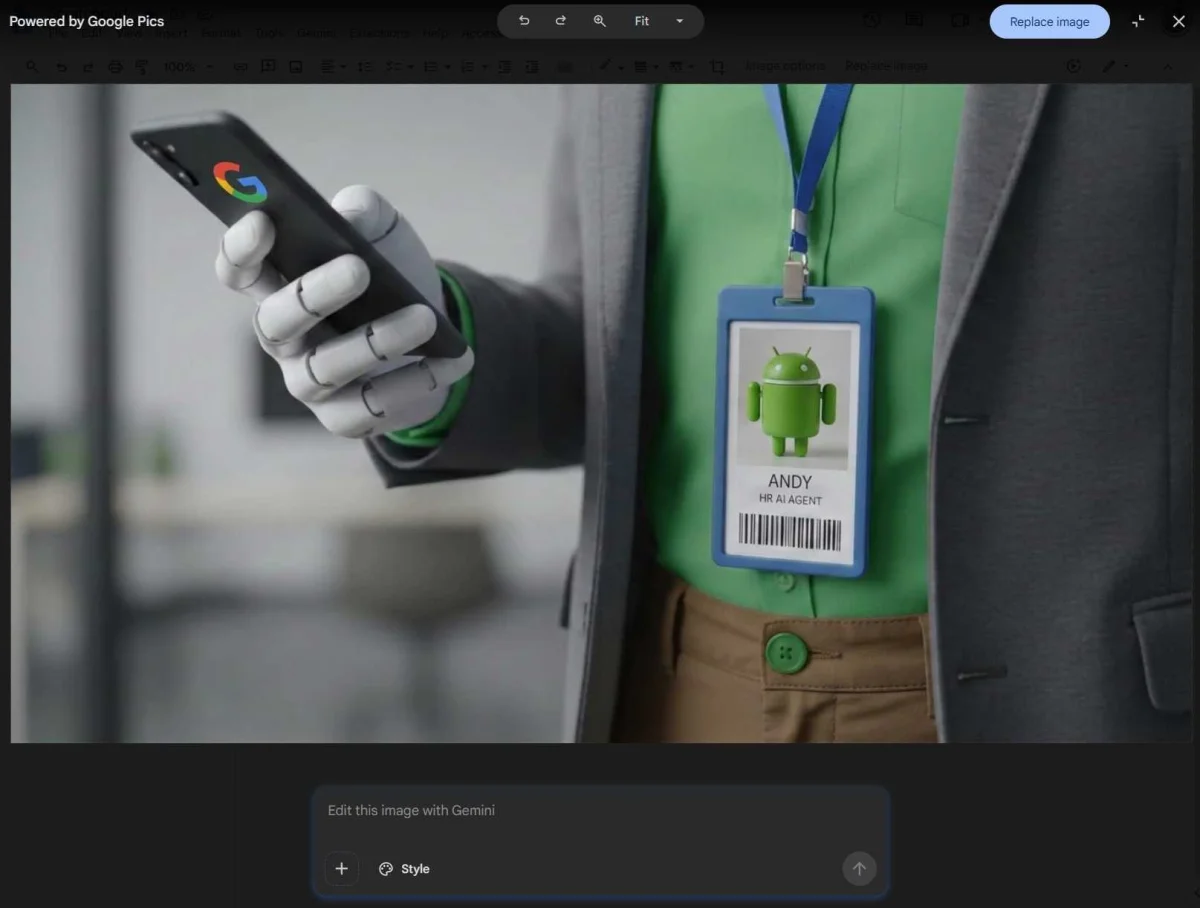
All edits land together in a single result.
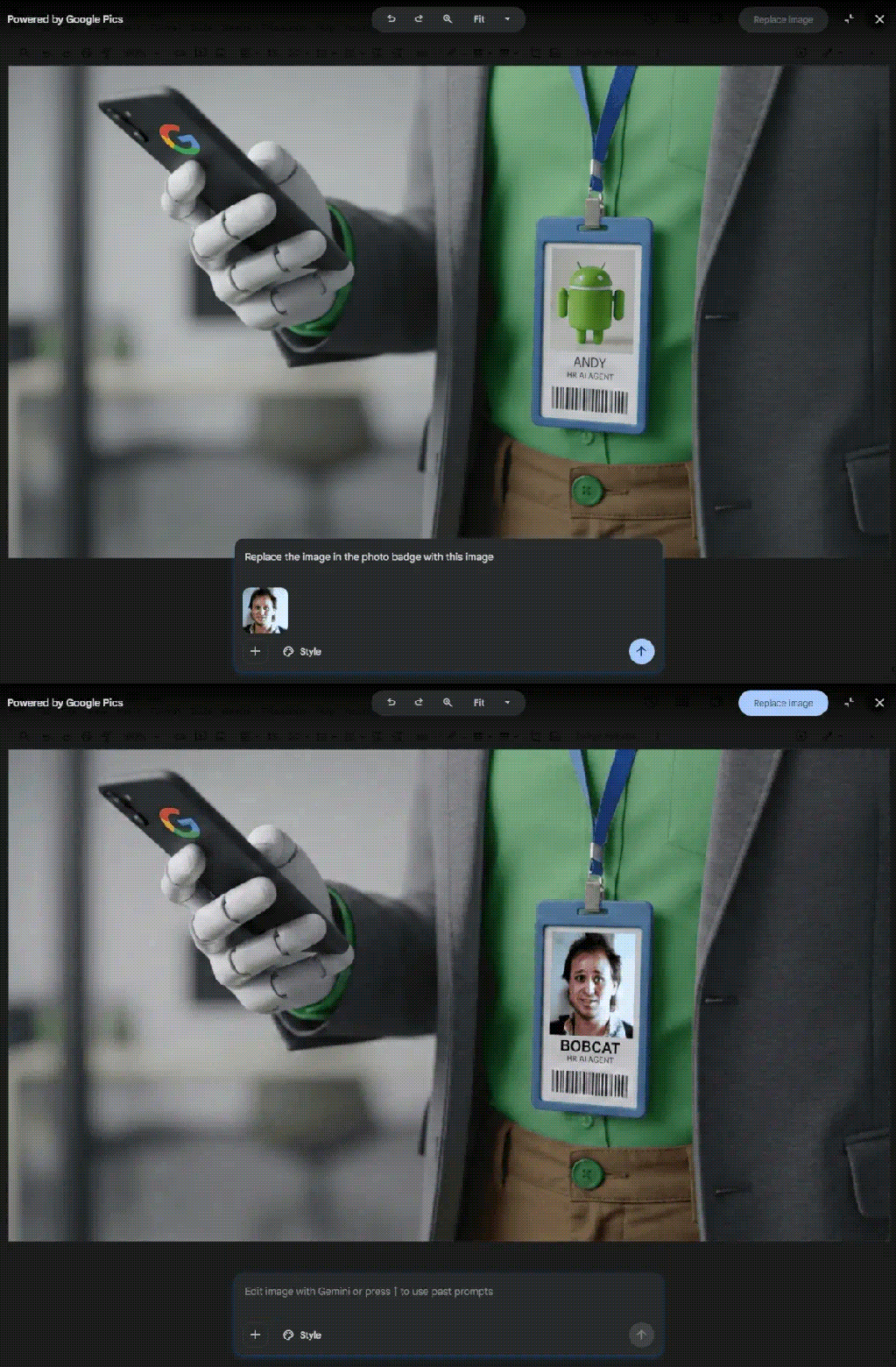
When you're happy with the output, click "Replace image" to drop the new version into your document or deck. The plus icon at the bottom of the screen lets you upload your own photos as reference points or as elements to place inside the image, which gives you more control than a text prompt alone.
Generating new images in the standalone editor
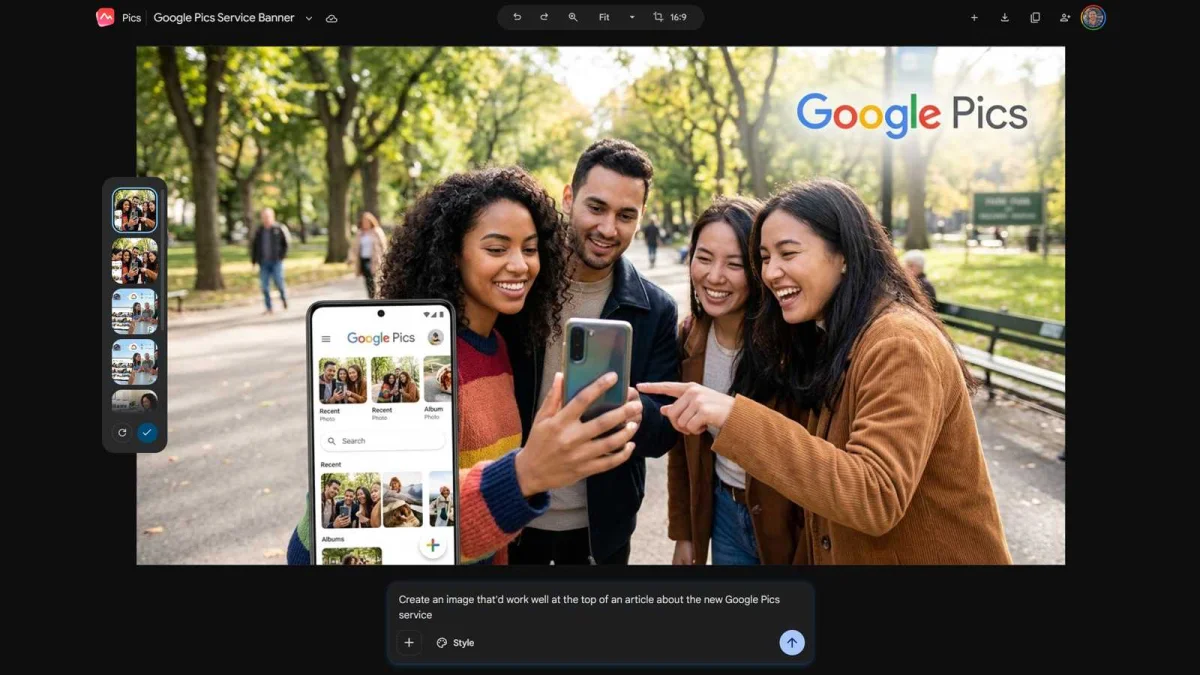
Creating images from scratch works differently. You don't get to it from inside Docs or Slides. You open pics.new in a browser tab. That's an odd split, especially since both apps already have a "Generate an image" option under the Insert menu. That option opens a Gemini side panel, which is a less capable version of the same idea. Google has a habit of putting similar tools in several places, and this is a clear example.
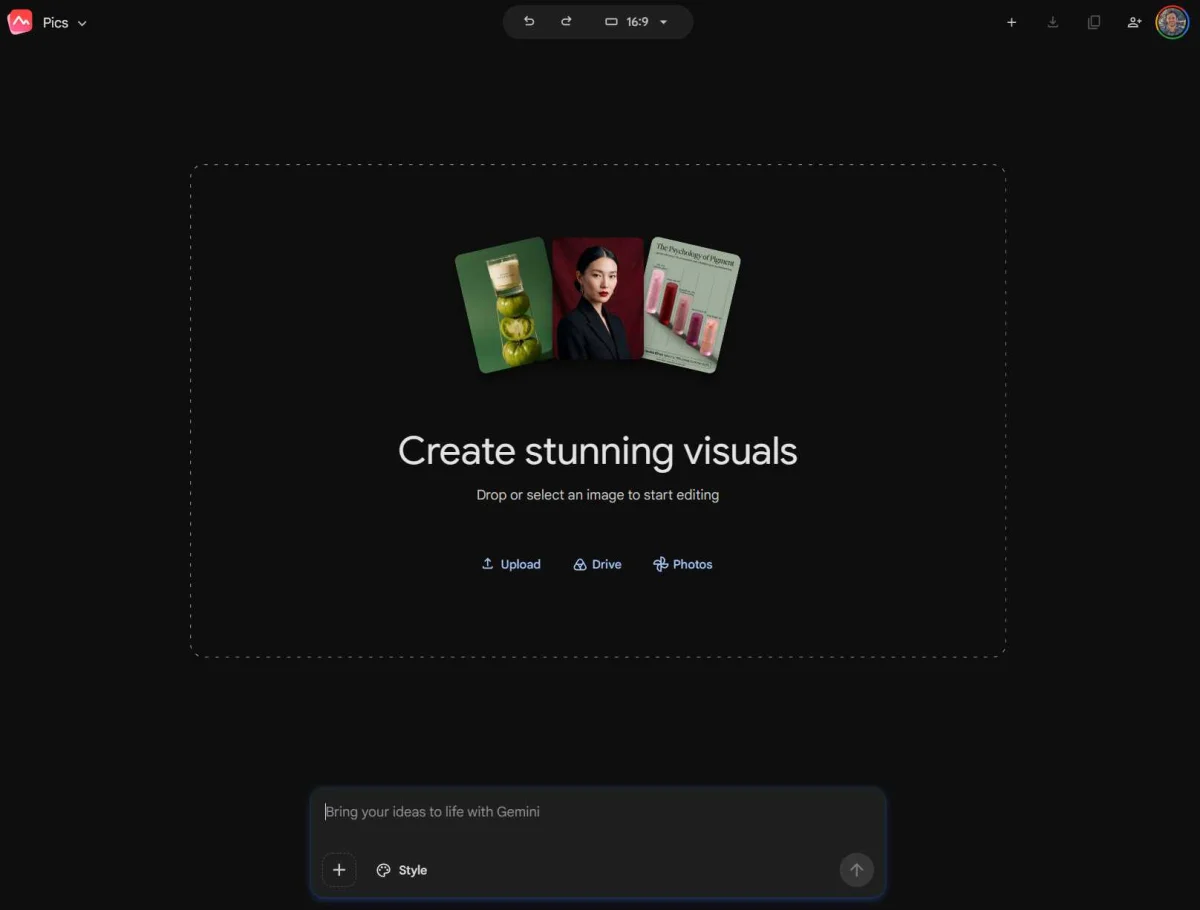
The standalone generator looks much like a standard Gemini prompt box.
On the surface, the standalone interface is a fairly standard Gemini image prompt. The difference is that it's built into the Workspace collaboration system. Use the sharing icon next to your profile picture in the upper-right corner, or press Ctrl-Alt-Shift-S, and you can work on an image with other people in real time. Only accounts with Pics access can change the image. Collaborators without it can watch the progress but can't edit.
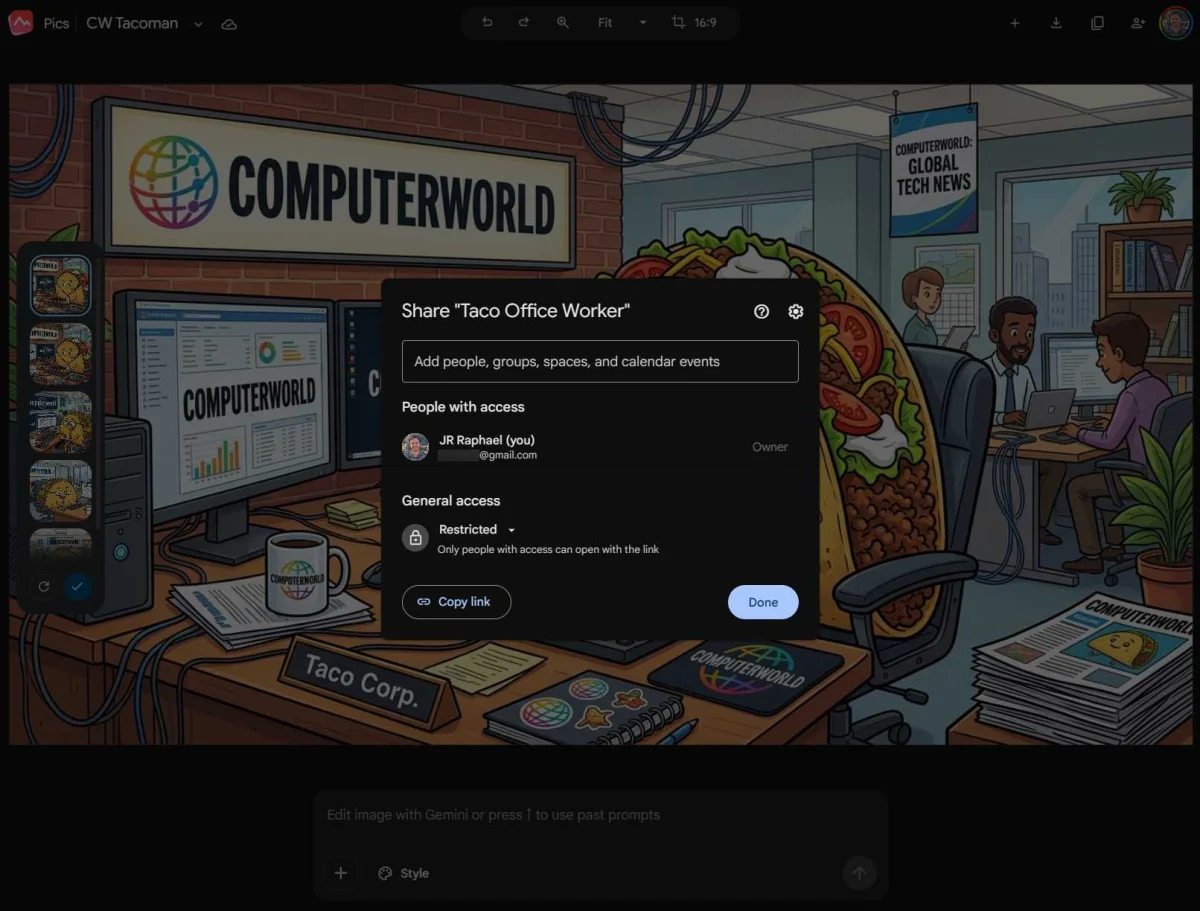
Real-time collaboration is one of the more useful features here.
This interface also offers multiple results when you request an edit from the main prompt box. That's a sensible hedge, since AI image output is hit-and-miss and seeing several options beats regenerating one at a time. Oddly, that choice isn't available when you edit an existing image from inside Docs or Slides. You get it only in the standalone editor.
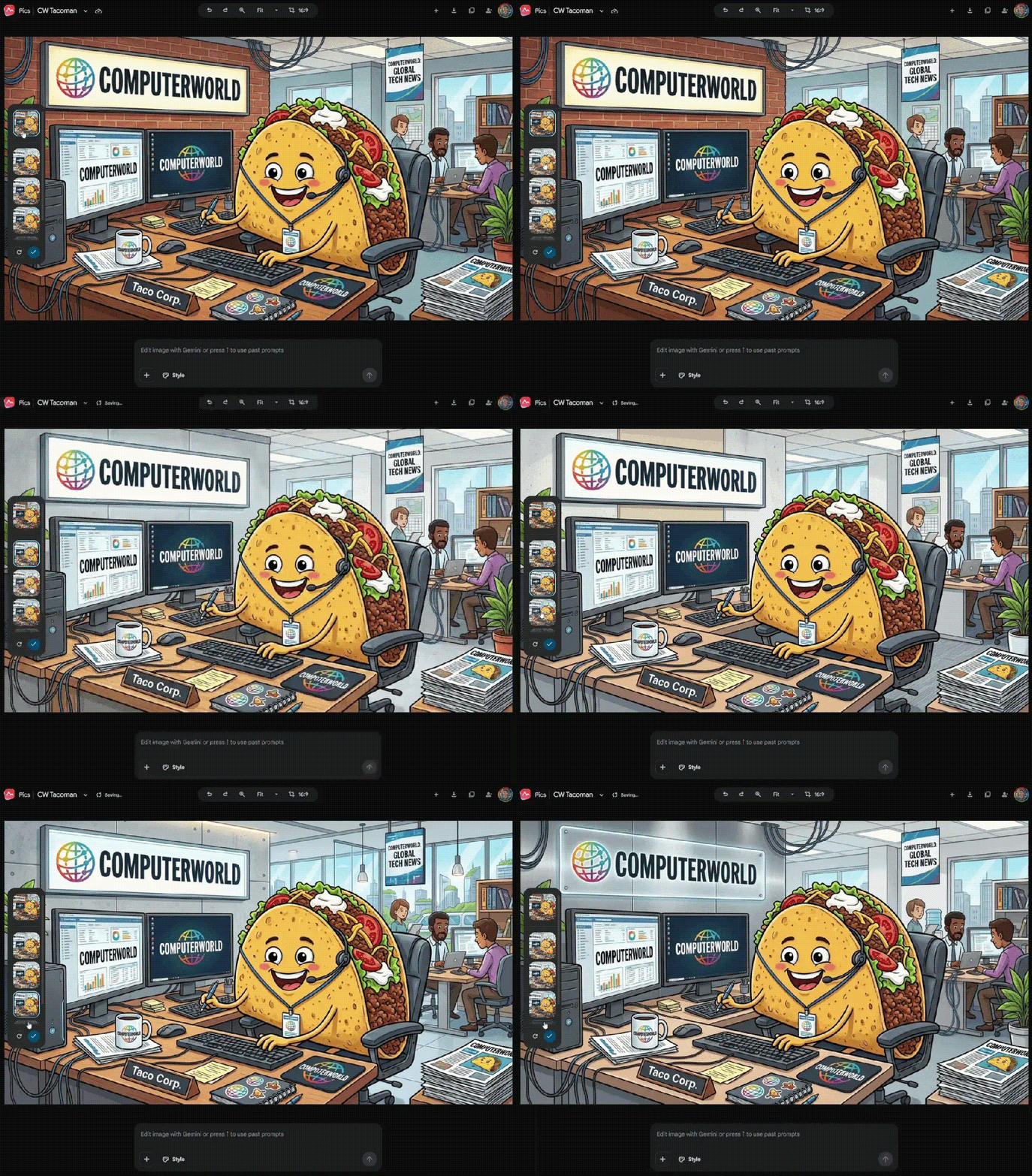
Multiple edit variations appear only in the standalone editor, not the in-document version.
Cropping, version history and getting images out
Cropping is the weak spot. The tool at the top of the screen adjusts dimensions, but it only crops what's already there. It doesn't regenerate the picture to fit the new frame. Tighten a composition too far and the result can look wrong, so plan your framing before you resize.
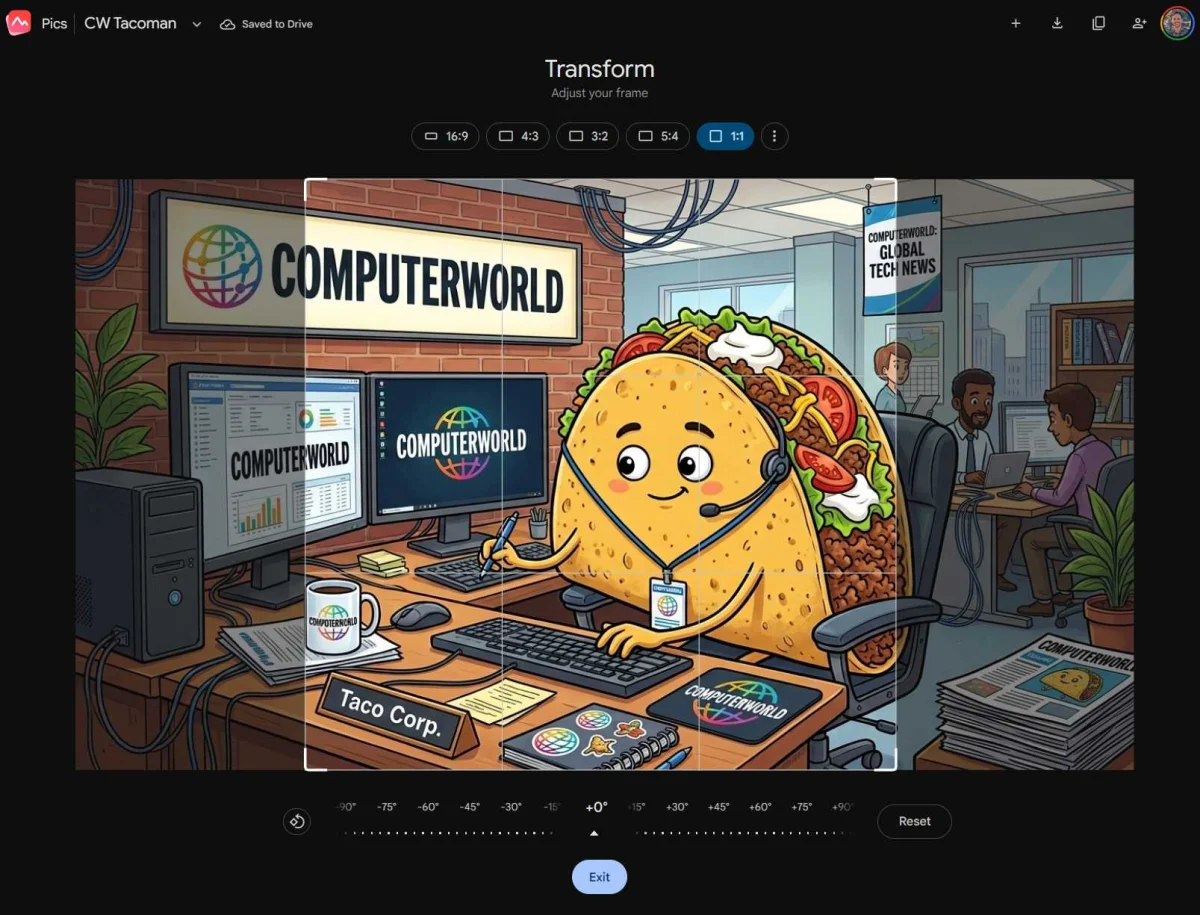
Resizing crops the existing frame and doesn't reflow the image.
Version history is tucked behind the small downward caret beside the image name. It works like Docs' version history, letting you track changes and roll back to an earlier version. It's easy to miss, but useful once you've made several rounds of edits.
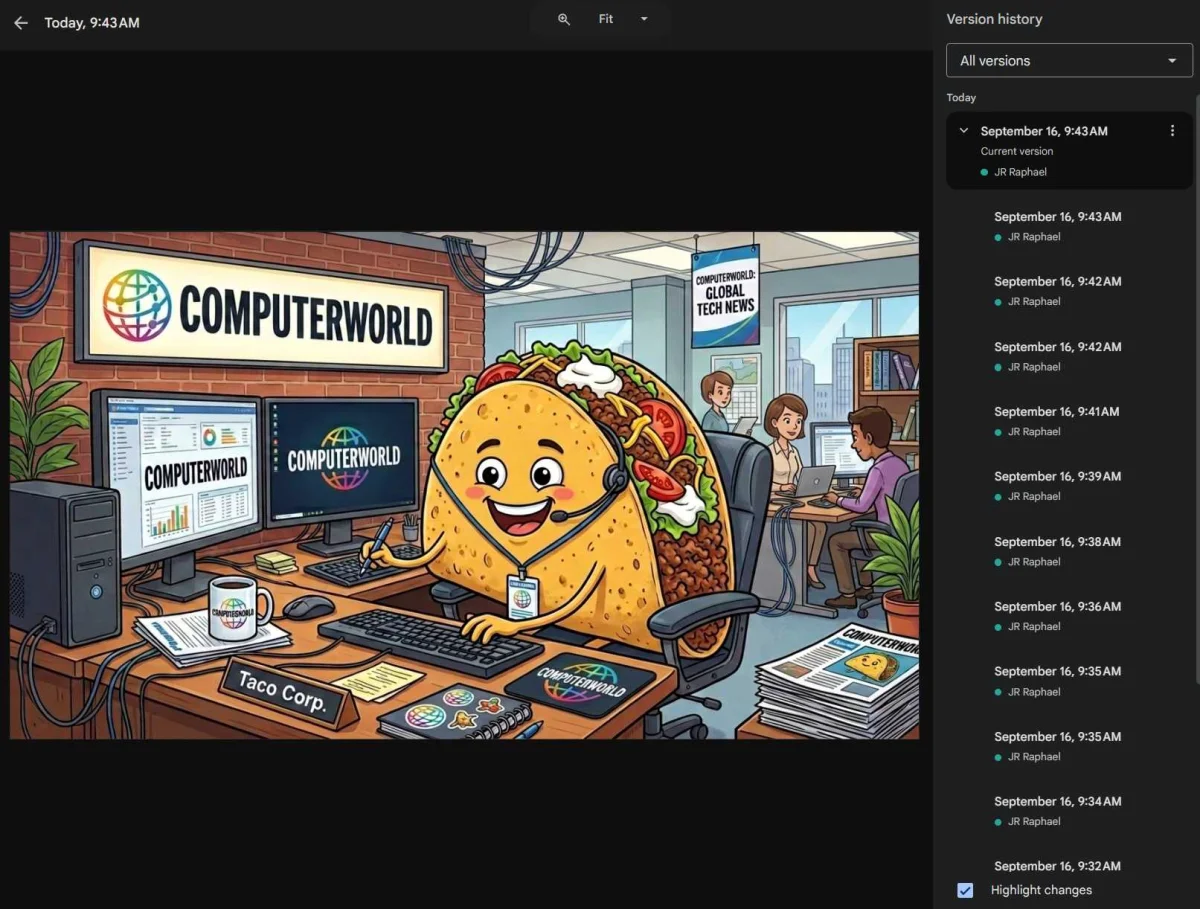
Docs-style version history is a helpful addition to the generator.
You can't insert a generated image directly into a document or presentation from here. Export it to your computer, or use the icon in the upper-right corner to copy it to the clipboard and paste it where you need it. Your Pics creations also live on a home page at docs.google.com/images. That address doesn't appear in the other Workspace app menus, so you'd only find it by knowing it exists.
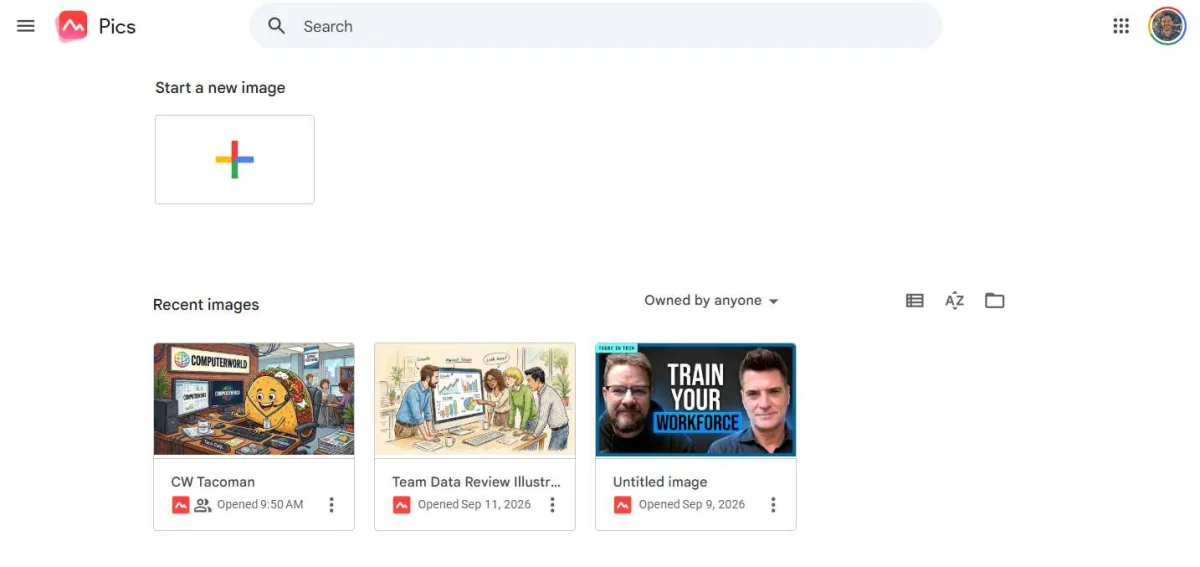
The Pics home page collects your past edits and creations.
Where Pics fits and what to watch
My read is that Pics is useful but disjointed. Editing belongs inside Docs and Slides, and it would make more sense as a plain feature there, with generation built in too. Splitting the workflow across two places and adding another brand name adds friction that the tool doesn't need. Expect Google to rename or fold Pics into other apps as it matures.
Still, the core value is clear. If you build documents and presentations without a design team, being able to recolor, relabel, translate, or swap parts of an image without leaving your file is a real time-saver. Keep an eye on the desktop-only limit and the staggered rollout, and check whether your account qualifies before you plan around it. Then start with the in-document edit button, since that's where Pics is most convenient.