First day cover ·
An Old Router Can Fix Your Wi-Fi Dead Zones Without a Mesh Upgrade
An old Wi-Fi 5 or newer router can work as a wired access point or wireless repeater to cover dead spots without buying mesh. Check security support first.

Before you shop for a mesh kit, check the router gathering dust in your closet. A spare Wi-Fi 5 (802.11ac) or newer model that still gets security updates can cover a dead zone as a wired access point or, if it supports repeater mode, as a wireless extender. Neither setup costs much, and both can reach a room the main router can't.
Dead zones usually come from the building rather than the hardware. A traditional router has a practical coverage area in an average home, and larger floor plans, unusual construction, and thick walls can leave a corner with a weak or missing signal. That's the situation a mesh system is built for, with several access points sharing one network. Mesh gear works well, but it's often expensive. Reusing an old router is the cheaper route, and it's a sensible one if the spare hardware still meets a few conditions.

Check the hardware before you start
Start by finding out whether the old router is worth using at all. Three things matter most.
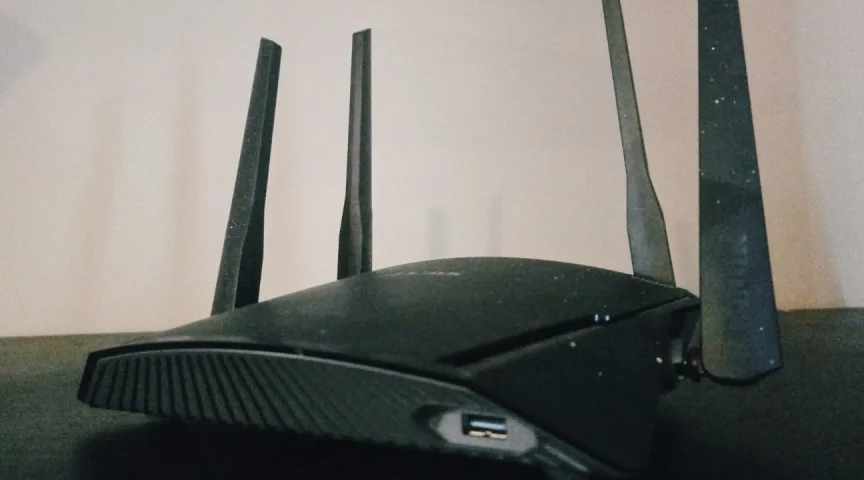
- Age: Wi-Fi 5 or newer is the recommended minimum. Older hardware can cause speed problems, and those can undercut the whole point of the exercise.
- Operating modes: Look for access point (AP), bridge, or repeater functionality in the admin settings. If you're not sure, search for the manufacturer and model number to confirm what it supports.
- Support status: A router that no longer receives firmware updates can leave gaps in your network. Look up whether the model has reached end-of-life before you plug it in.
If the hardware passes those checks, the setup itself is straightforward, if a little fiddly.
Reset, update, and lock down the old unit
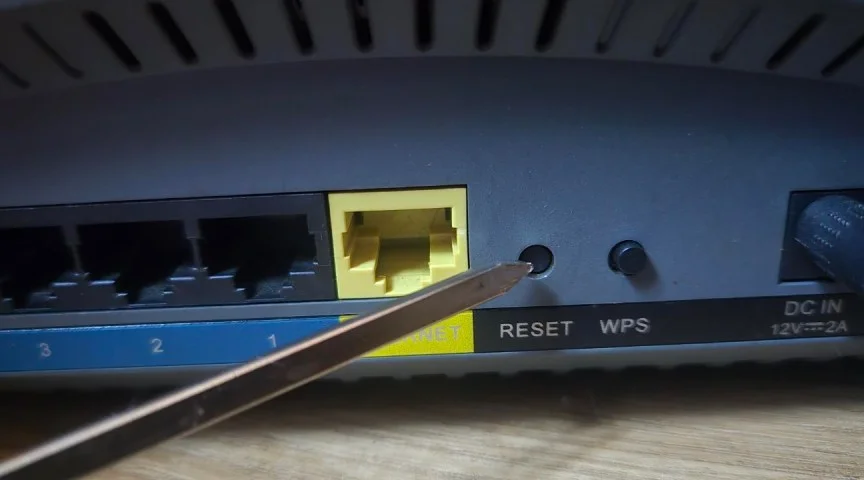
Power up the router and find its reset control. This is usually a small pinhole button, so you'll need a paperclip, a toothpick, or something similar with a thin, sharp tip. Hold it for 15 to 30 seconds and wait for the lights to flash, which signals the reset has worked. The reviewer behind this guide used an older D-Link unit, and a metal skewer did the job when nothing else was to hand.
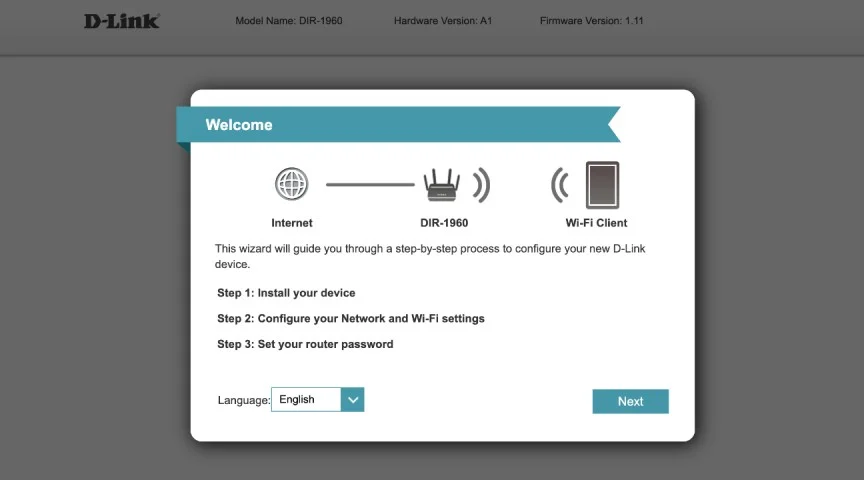
Next, update the firmware. Depending on the make and model, you may be able to do this through a companion app, or through the router's admin panel in a browser over Wi-Fi or Ethernet. Manufacturers typically publish step-by-step guides for this, and video walkthroughs are easy to find.
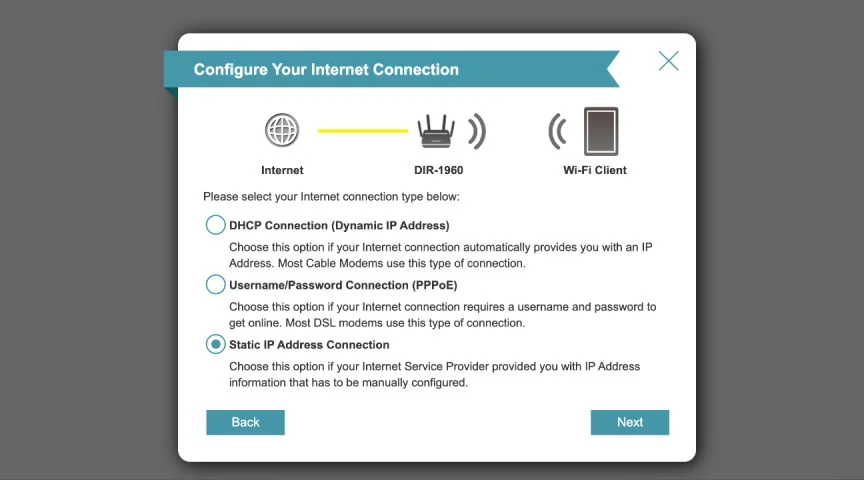
To reach the admin panel, use the address printed on the router's label or underside. Common examples include 192.168.0.1, tplinkwifi.net, asusrouter.com, and routerlogin.net. The login details are usually printed there too. Most brands then walk you through a setup wizard.

Change the admin password during that process. Default credentials on older models are a real weak point, particularly when the username is "admin" and the password is easy to guess. Choose something long and unique.

Wired access point or wireless repeater
This is the main decision, and it comes down to a trade-off between speed and convenience.

A wired access point gives you the better result. If the old router has a native AP mode, enable it, then run an Ethernet cable from a LAN port on the main router to a LAN port on the old unit. Place the old router where you need coverage. Use LAN ports rather than the WAN port on the secondary device, since WAN is meant for the internet connection. In AP mode, either port type may work, but if the colors or labels aren't clear, a quick search for your model will tell you which is which.

You'll probably also need to turn off DHCP on the old router, which stops it from handing out addresses that could clash with the main router's. Then assign it a static IP address that sits inside the same subnet as your main network but outside the range the main router gives to devices. Some wizards handle this automatically. Others bury it in the connection settings, so check the menus if nothing obvious appears. A static IP explainer can help if the terminology is new.

If you can't run a cable, wireless repeater mode is the fallback. Enable it on the old router, then enter the main network's name (SSID) and password. The secondary unit picks up the existing signal and rebroadcasts it. This can extend coverage, but speed and stability usually suffer compared with a wired link, because the repeater is sharing airtime with the traffic it's relaying.
Placement and testing
Placement decides whether the whole project pays off. For repeater mode, aim for a spot roughly halfway between the main router and the dead zone, where the repeater can still receive a strong signal. For a wired access point, put the unit wherever the cable comfortably reaches the area you need to cover, without stretching it. In both cases, stay near a power outlet.
Then test. Run a speed test at several points in the area you're covering, using a service such as speedtest.net. Compare results with and without the extender in place, and move the unit if the numbers are poor. Small adjustments often make a noticeable difference.
Common questions
The difference between an access point and a repeater comes down to the connection back to the main router. An access point connects by cable and broadcasts the same network from another spot in the house. A repeater connects wirelessly, captures the existing signal, and passes it on. Both can patch weak coverage, but repeaters tend to lose more speed and strength.
A cable isn't strictly required, but it's the better option when you can run one. A wired link is usually more reliable and faster than a wireless hop.
Running an old router that no longer gets updates is a risk. Unsupported devices can be exploited, and a compromised router can be pulled into a botnet or used to monitor and alter traffic on your network. If the router can't handle a WPA2 connection, it's probably too old to trust.
Mixing brands is generally fine. As long as both devices support the same Wi-Fi standards, you don't need matching hardware from one manufacturer.
If you'd rather not configure anything, a dedicated Wi-Fi extender is the quicker fix, and it often performs better. The cheapest models cost around $20. Make sure any extender you buy is compatible with your router.
Mesh is still the better answer in some situations. You may need it if you can't run cables or drill walls, such as in a rented property where changes aren't allowed. It also makes more sense for large homes or multi-floor layouts, for a home office in a separate building like a backyard studio, or for households where many devices compete for bandwidth. Several access points can reduce the bottlenecks that a single extended connection can create.
For most people with one stubborn dead spot, though, the old router in the cupboard is the cheapest place to start. Test the coverage first, and if the signal still falls short in the right room, that's the point where a purpose-built mesh system starts to earn its price.